
Introduction
Many people buy JiSpace initially just to back up photos, store movies, and play data. After using it for a long time, you will find that the real fun of NAS is not just "storing files", but that you can slowly bring back some services that originally relied on the platform.
Listening to books and podcasts is a typical scenario. Platform apps have a lot of content, but they are also easily affected by membership, advertising, recommendation algorithms and copyright changes. The programs you can listen to today may be off the shelves tomorrow; the content you have collected for a long time has to be found again when you change the device, and you may not be able to connect to it wherever you listen.
Audiobookshelf is suitable for solving this kind of problem. It is an open source audiobook and podcast management tool that can organize local audio into its own bookshelf, supporting cover, classification, metadata, playback progress and multi-device continued listening. For people who like to listen to books while commuting, listen to podcasts before going to bed, or who have collected a lot of audio resources, it will be more useful than simply throwing files into a folder.
It is also suitable to deploy Audiobookshelf in polar space. Extreme Space is responsible for saving audio files and running services for a long time, and Audiobookshelf is responsible for organizing these contents into an accessible, playable, and synchronizable media library. In this way, the NAS is not just a hard drive box, but becomes a private audio content center at home.
This article will start from opening SSH in Jispace and confirming the Docker environment, and demonstrates Audiobookshelf directory creation, Docker Compose deployment, background login, Chinese settings, media library creation, local audio upload and playback experience. Finally pass cpolar Configure a public network access address and a fixed second-level subdomain name, so that this private listening platform can be used not only at home, but also when commuting, traveling, or going out.
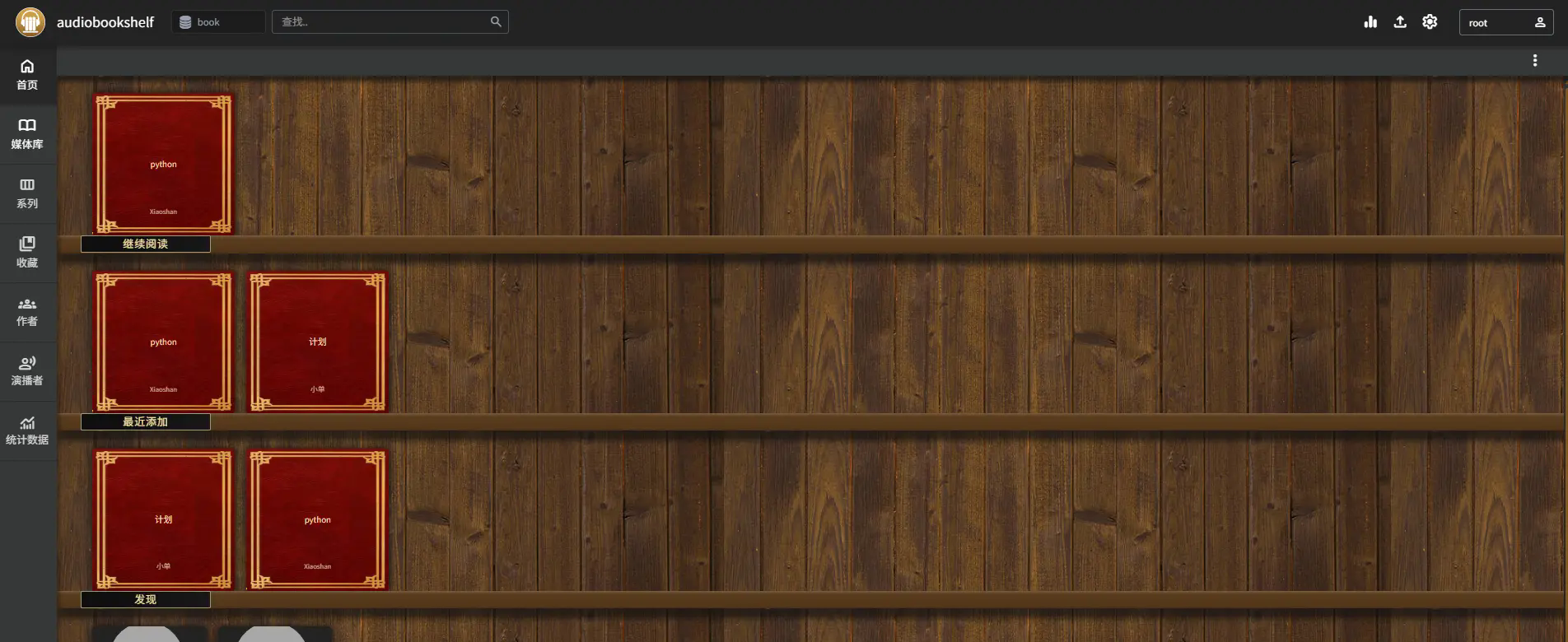
1. Deploy Audiobookshelf in Extreme Space
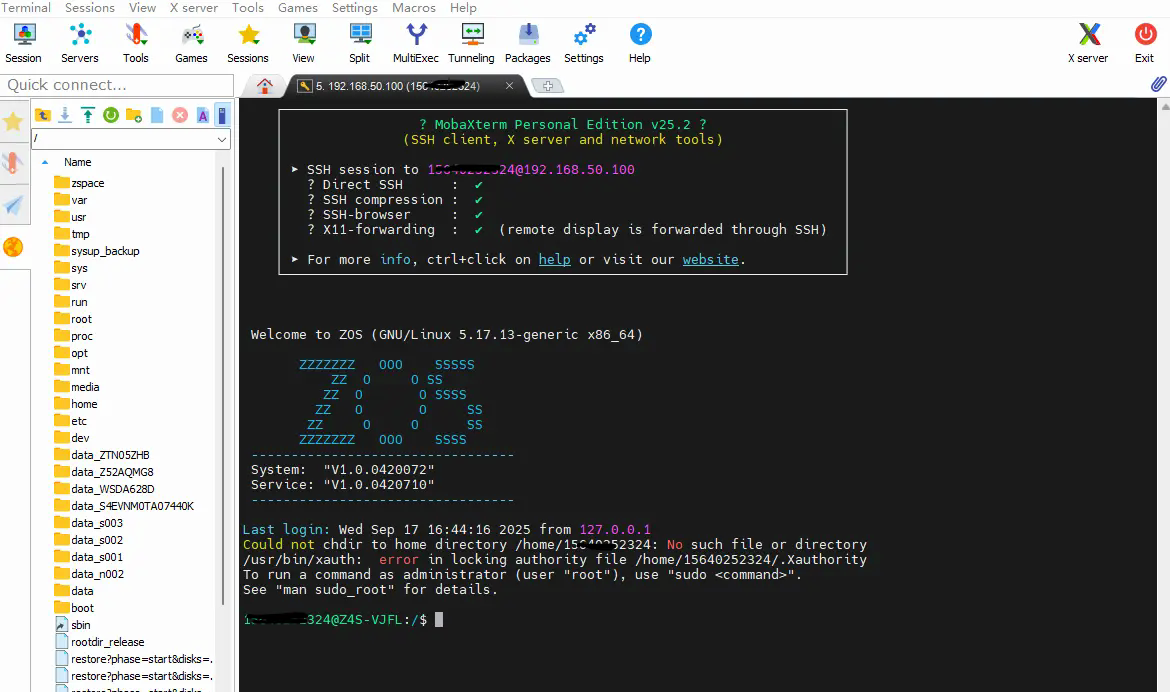
1.1SSH remote connection to JiSpace
- Enable [SSH service]
- Log in using Terminal (Windows PowerShell/Mac Terminal):
ssh root@IP
Friends who don’t have ssh can go to the cpolar official website for reference. "Stop eating dust in extreme space!" Turn on SSH and become a versatile server in seconds! " This article:
1.2 Verify whether docker is turned on
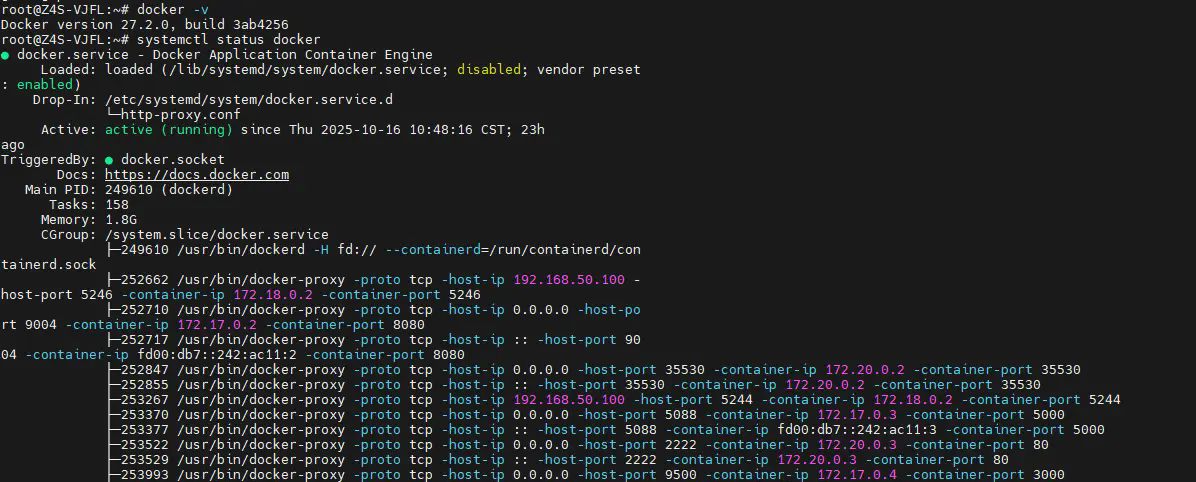
Use command:
docker -v
systemctl status -v
Friends who don’t have docker can refer to this article on cpolar’s official website: "Extreme Space Unboxing Record: From unboxing to remote access nanny-level tutorial, get started in 30 minutes!" "
1.3 Install Audiobookshelf
First create the storage directory:
- Create audiobooksshelf in docker directory
- The audiobooksshelf directory (newly created) is created in order: audiobooks, podcasts, config, metadata

Please save the following content as docker-compose.yml document:
version: "3.7"
services:
  audiobookshelf:
    image: gcr.io/advp lyr/audio bookshelf:latest
    container_name: audiobookshelf
    ports:
      - "13378:80"
    volumes:
      - ./audiobooks:/audiobooks
      - ./podcasts:/podcasts
      - ./config:/config
      - ./metadata:/metadata
    restart: unless-stopped
Execute the following command:
docker-compose up -d
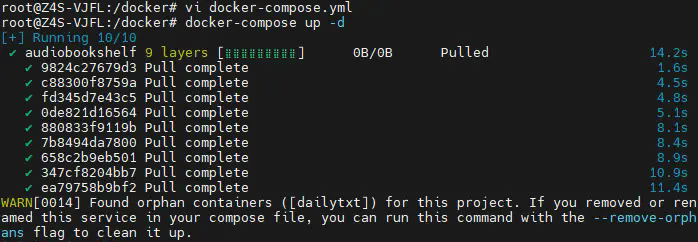
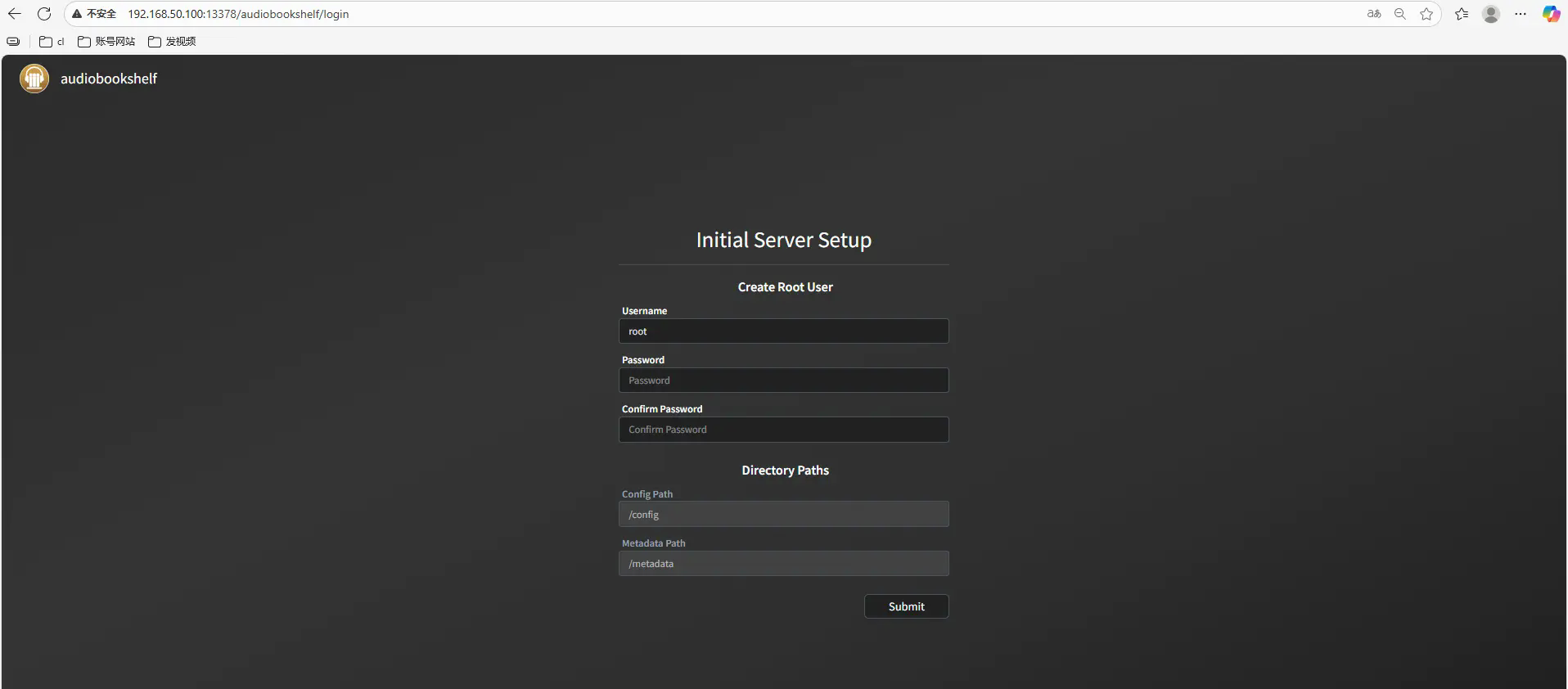
After deployment is complete, enter in the browser http://extreme spaceIP:13378 You will see the login interface:
1.4 Simple use of Audiobookshelf
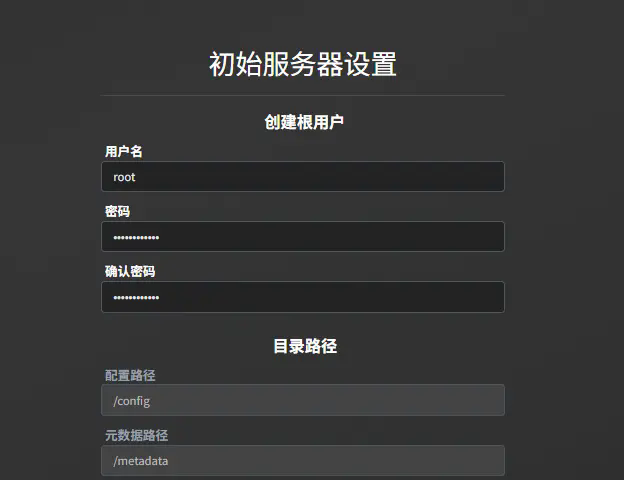
Set login password:
Log in:
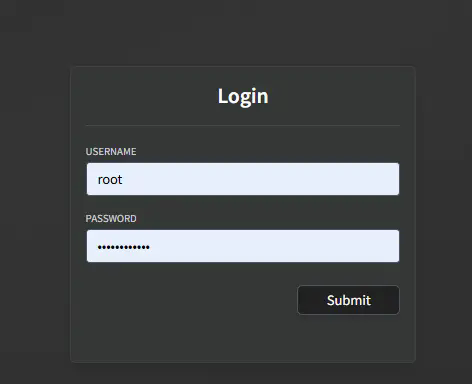
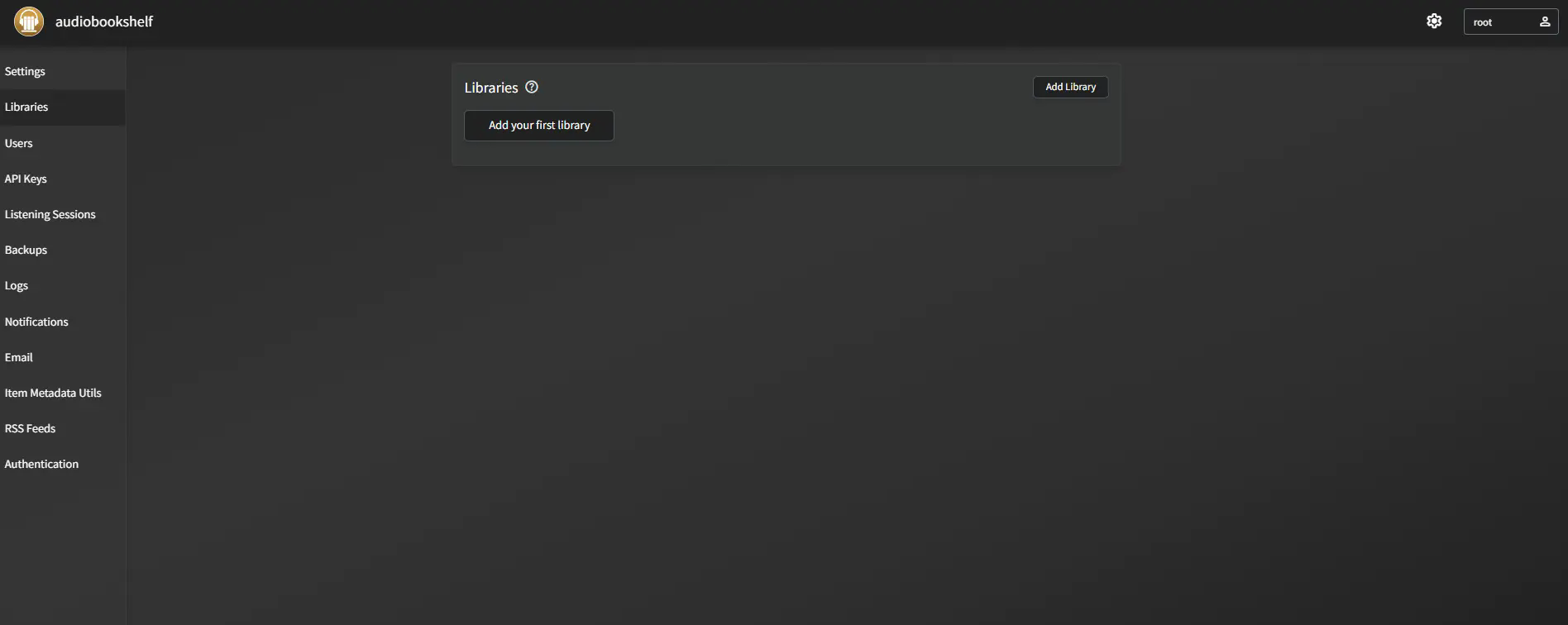
Login in:
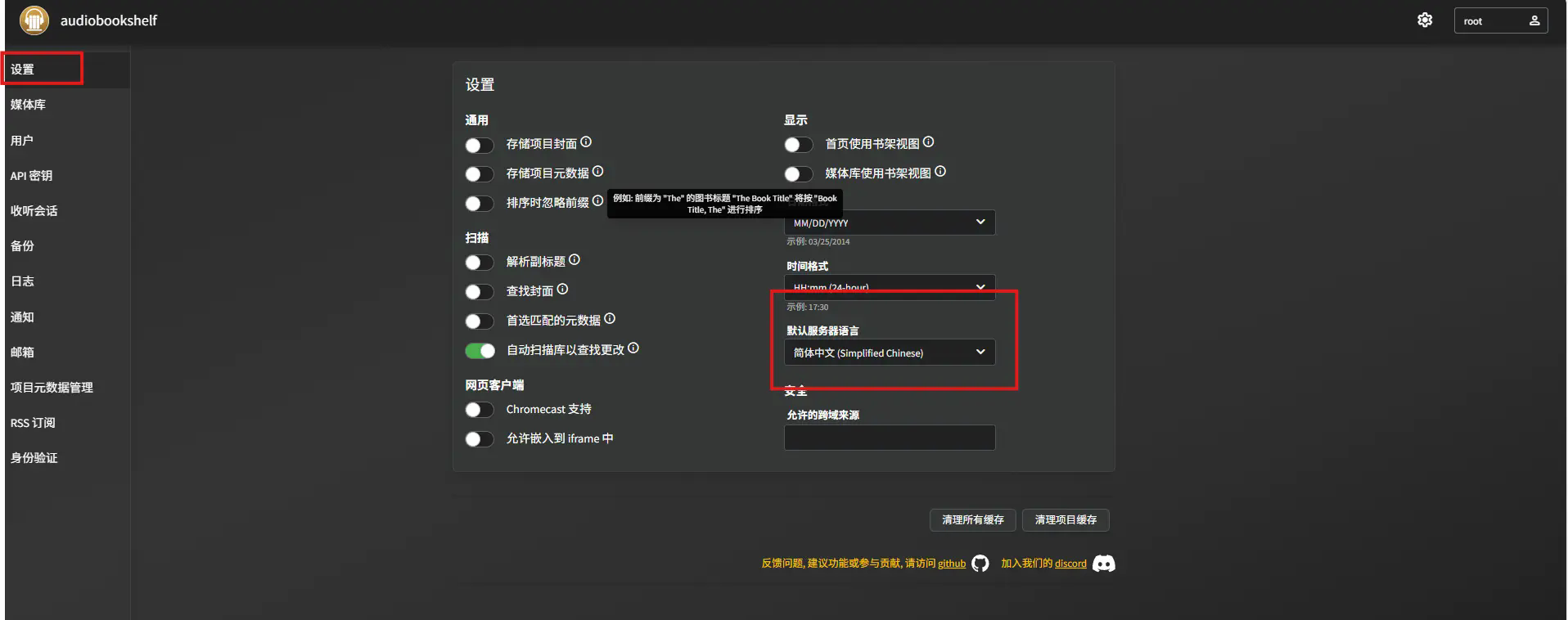
Set to Chinese:
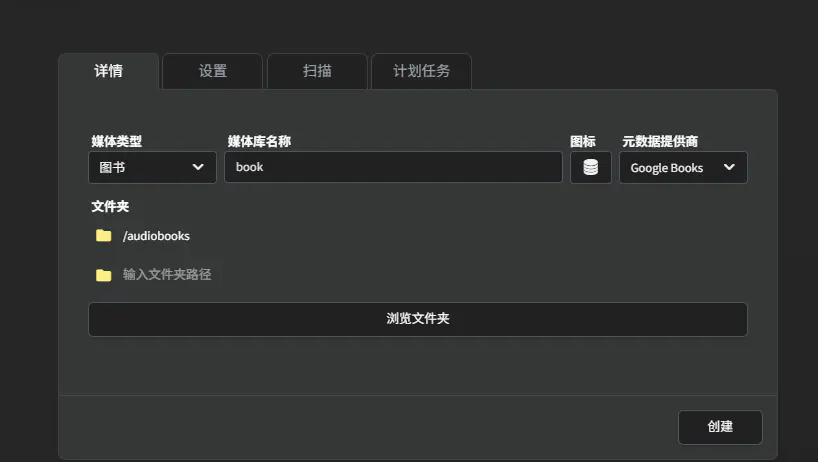
Create a media library:
- Media Type: Book
- Media library (custom)
- Folder selection (audiobooks)
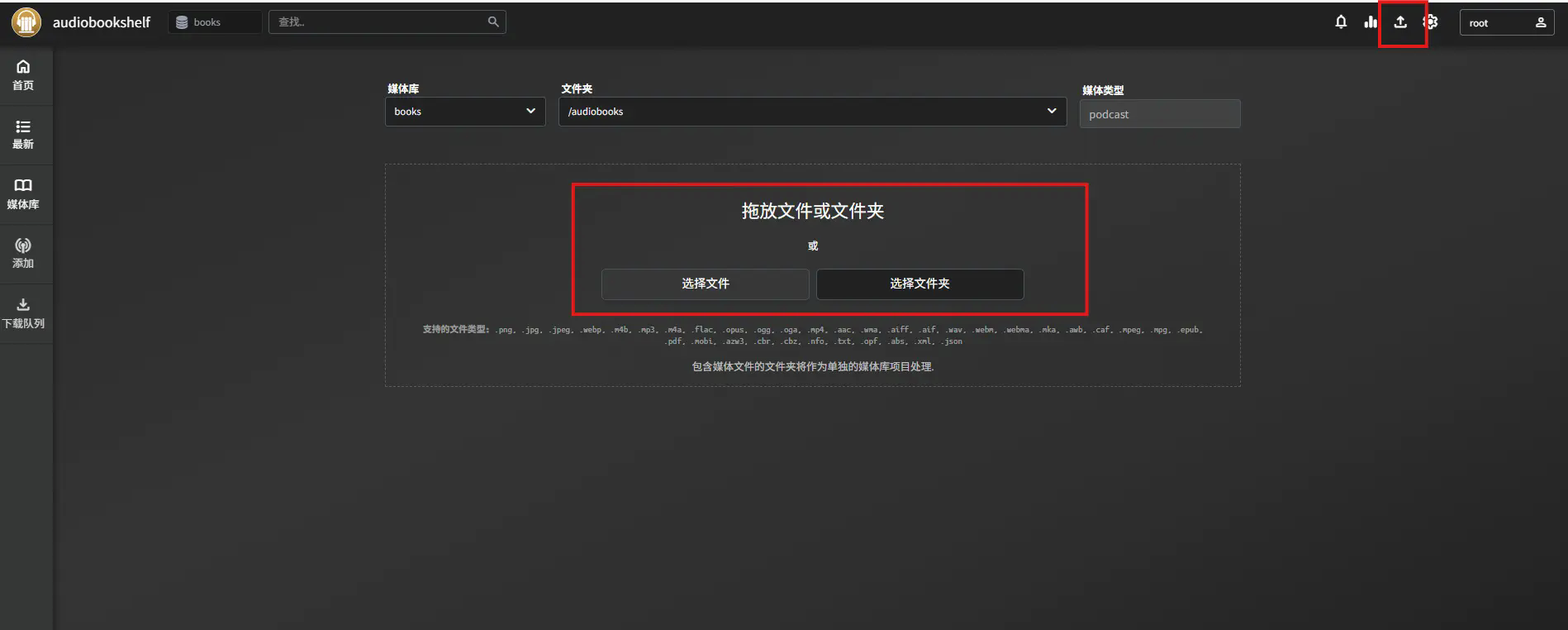
Upload local resources on the web page (upload separately)
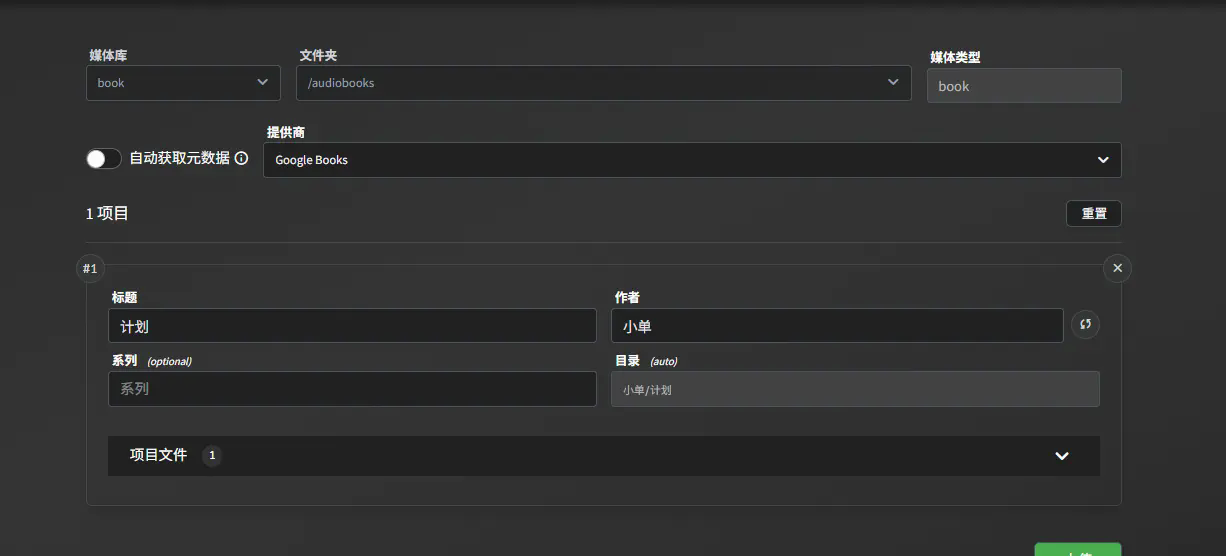
Fill in basic information:
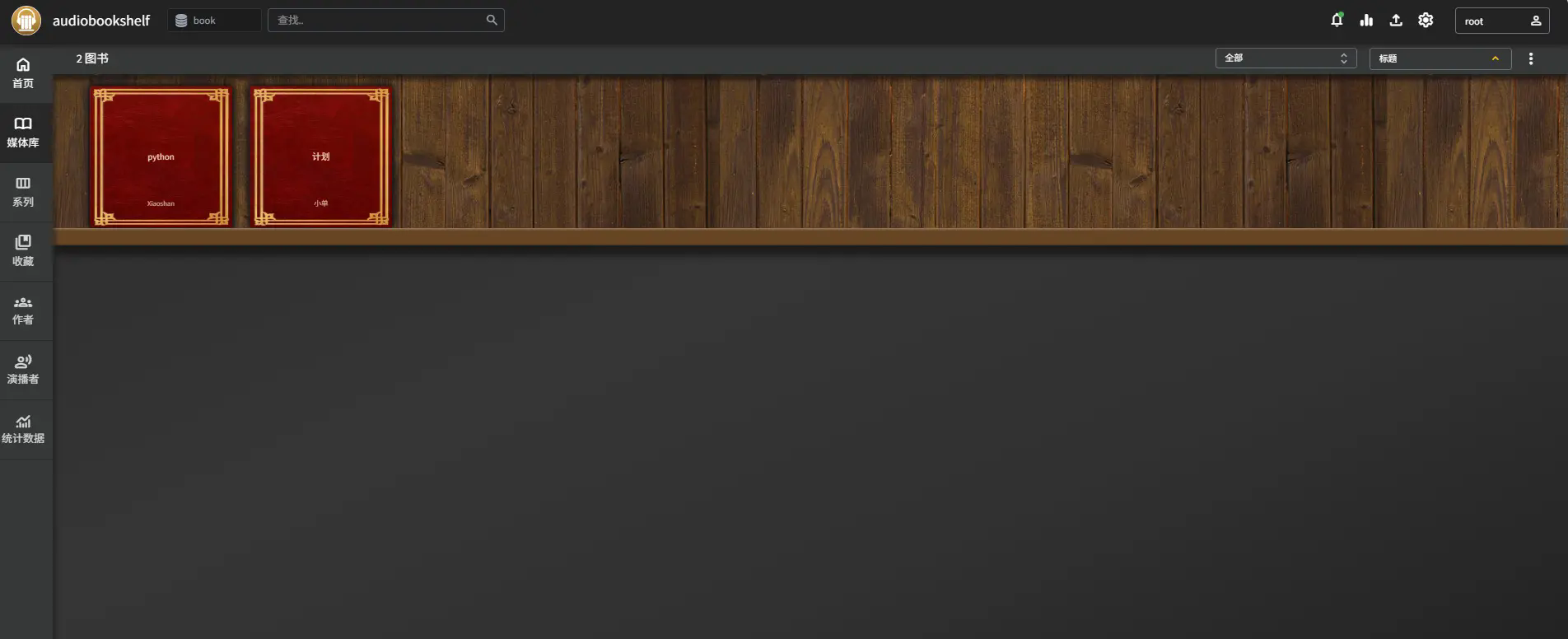
After uploading, you can see it on the bookshelf:
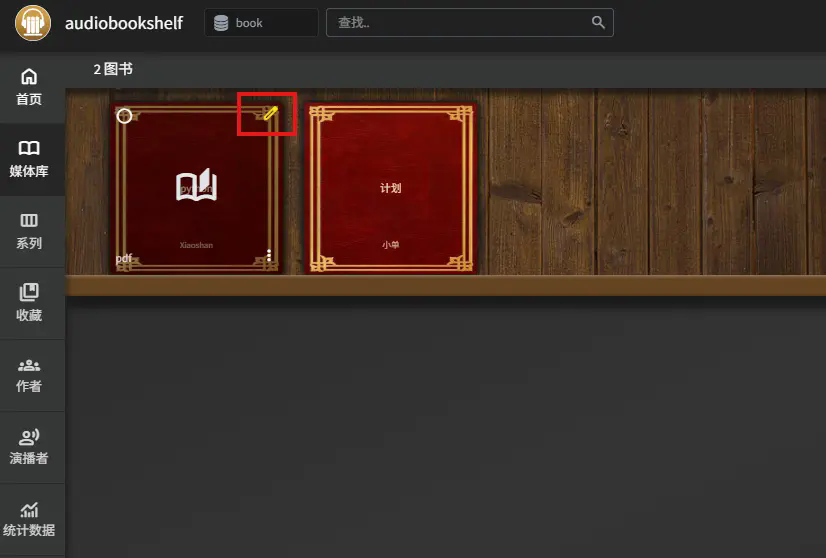
edit:
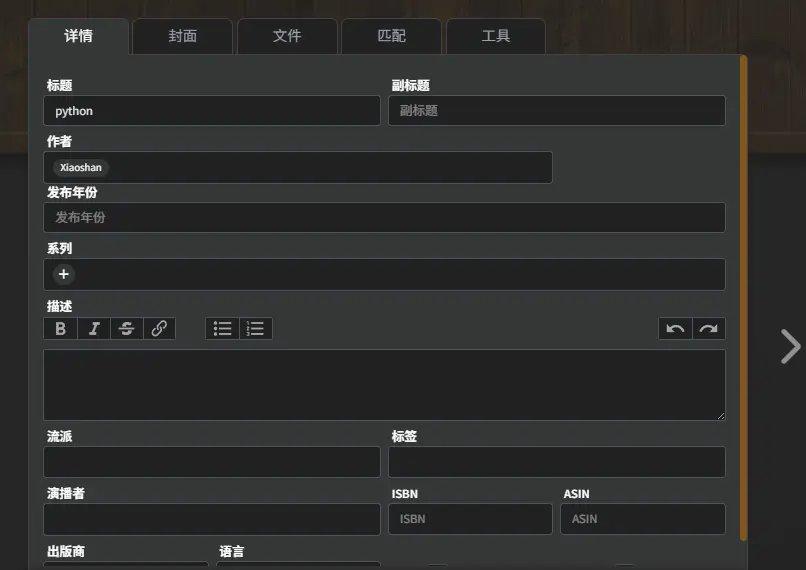
Basic information can be changed:
Download is complete, start playing!
In order to access the locally deployed Audiobookshelf audiobook service anytime and anywhere, you can expose it to the public network through the intranet penetration tool cpolar. Users can seamlessly access their personal audio book library on mobile phones, tablets or remote devices, realize bookmark synchronization and continuous playback across networks and devices, and easily create their own private cloud audiobook platform.
2. Install cpolar to listen to books anytime and anywhere
cpolar can map services on your local computer (such as SSH, Web, database) to the public network. Even if you are at home or out and about, you can connect back to the locally running development environment through the public network address.
❤️The following are the steps to install cpolar:
Use the one-click script installation command:
sudo curl https://get.cpolar.sh | sh
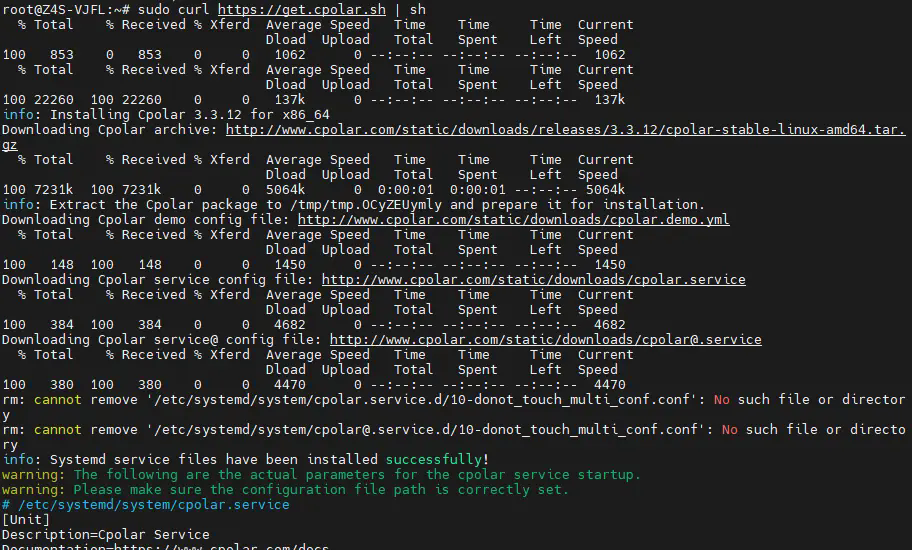
After the installation is complete, execute the following command to view the cpolar service status: (As shown in the picture, it means normal startup)
sudo systemctl status cpolar
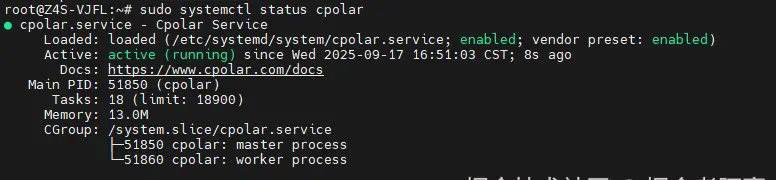
After Cpolar is installed and the service is successfully started, enter the virtual machine host IP plus port 9200 on the browser: [http://ip:9200]Access the Cpolar management interface and log in with the account registered on the Cpolar official website. After logging in, you can see the cpolar web configuration interface. Next, configure it in the web interface:
Open a browser to access the local port 9200 and log in using the cpolar account and password. After logging in, you can manage the tunnel.
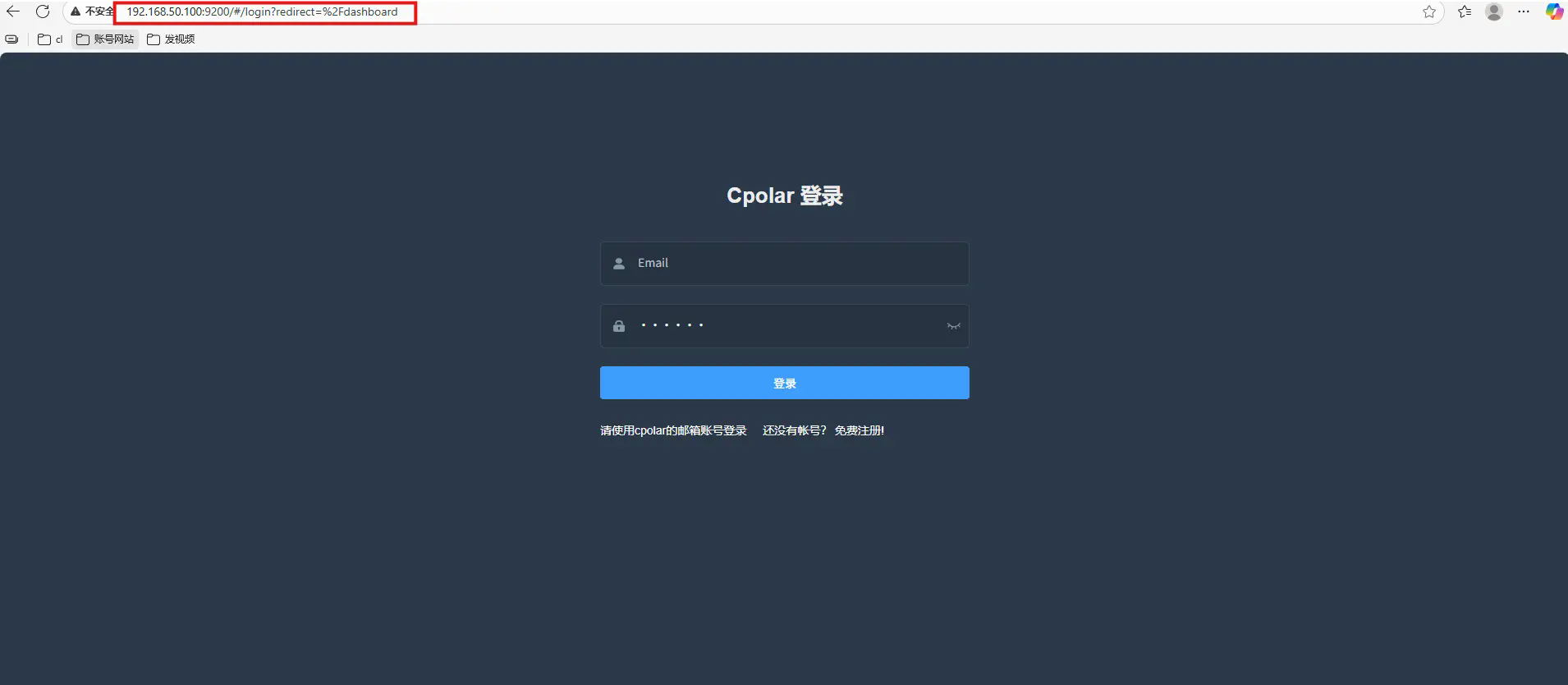
3. Configure the public network address
After logging in to the cpolar web UI management interface, click Tunnel Management - Create Tunnel on the left dashboard:
- Tunnel name: Customizable. This example uses: audio. Be careful not to duplicate the existing tunnel name.
- Protocol: http
- Local address: 13378
- Domain name type: random domain name
- Region: Select China Top
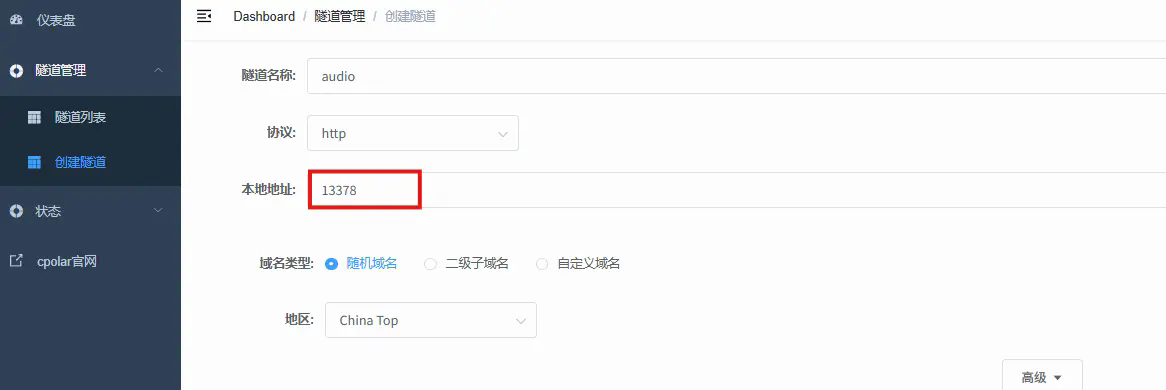
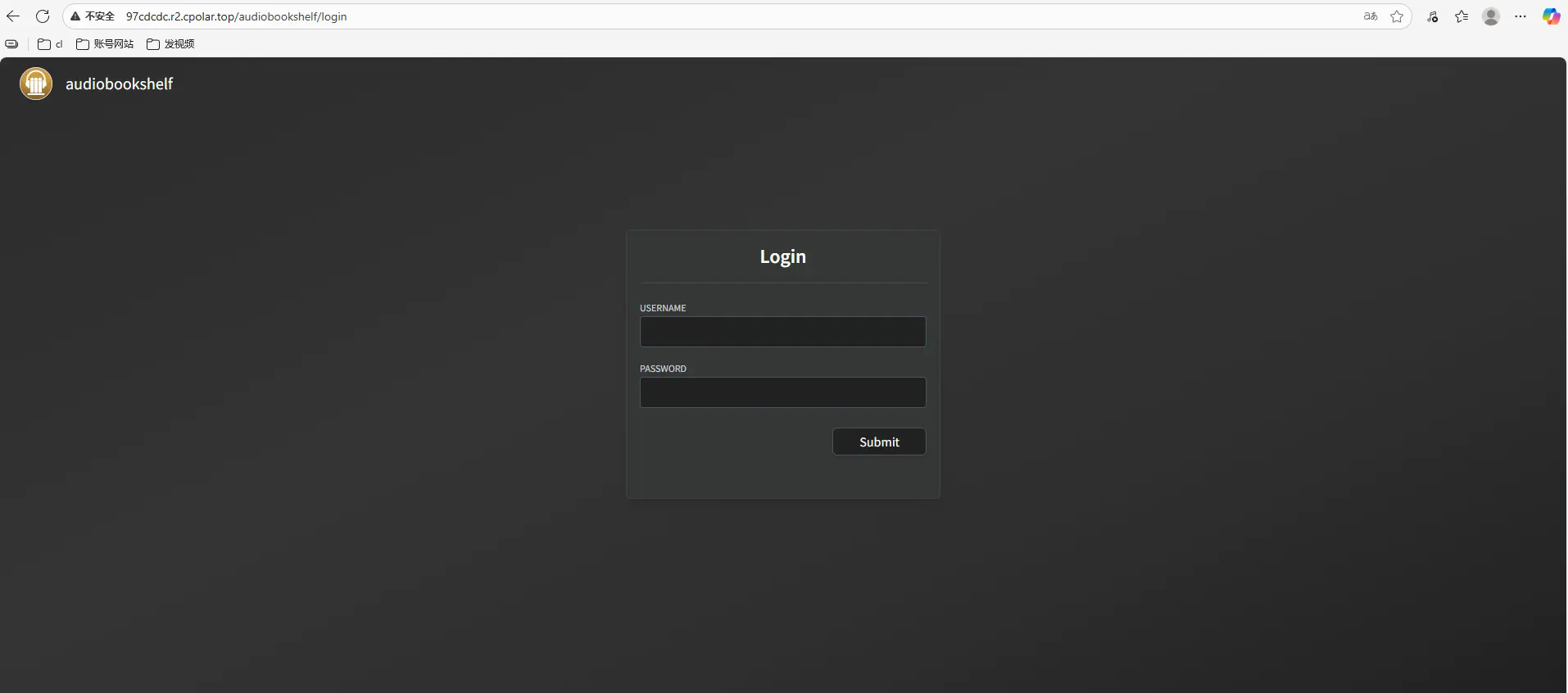
After the creation is successful, open the online tunnel list on the left. You can see that the public network address has just been generated by creating the tunnel. You can then use the address to access it on other computers or mobile devices (offsite).
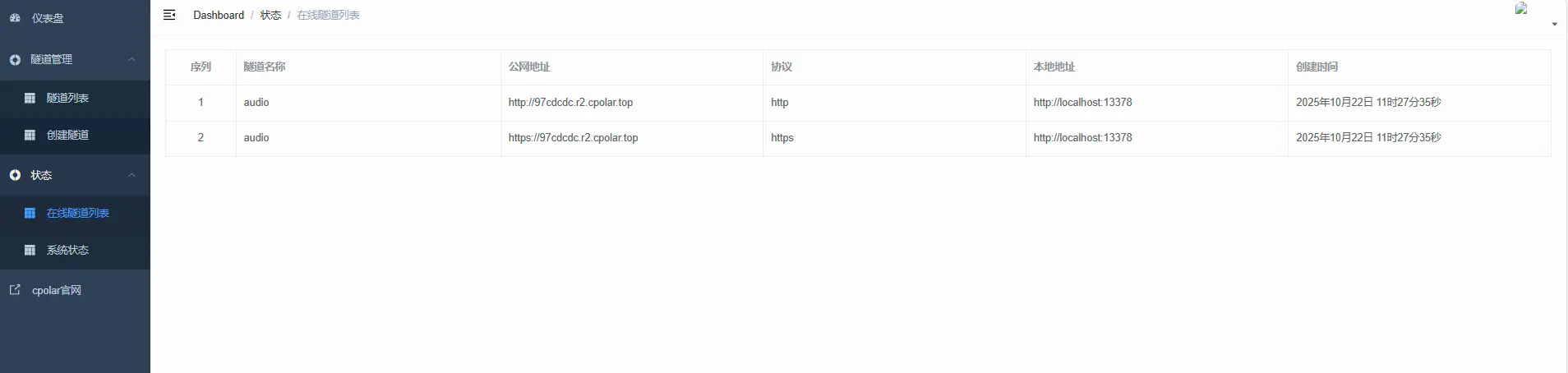
Access successful.
4. Keep a fixed public network address
Use cpolar to configure a second-level subdomain name for it. This address is a fixed address and will not change randomly.
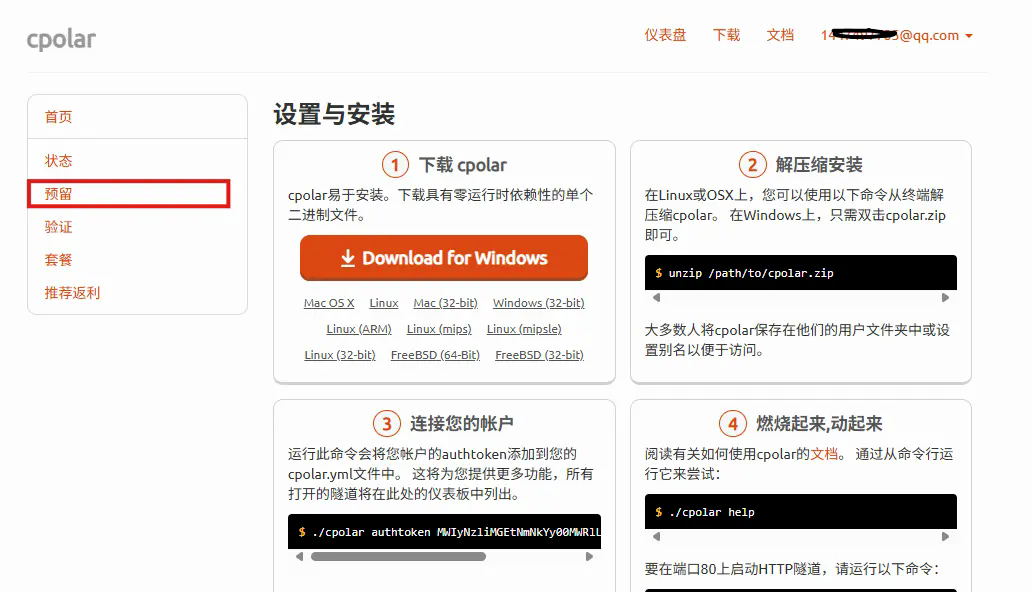
Click Reserve on the left, select to reserve the second-level subdomain name, select china Top for the region, and then set a second-level subdomain name. I use audio, but you can customize it. Fill in the remark information and click Save.

Log in to the cpolar web UI management interface, click Tunnel Management - Tunnel List on the left dashboard, find the tunnel you want to configure, and click on the rightedit.
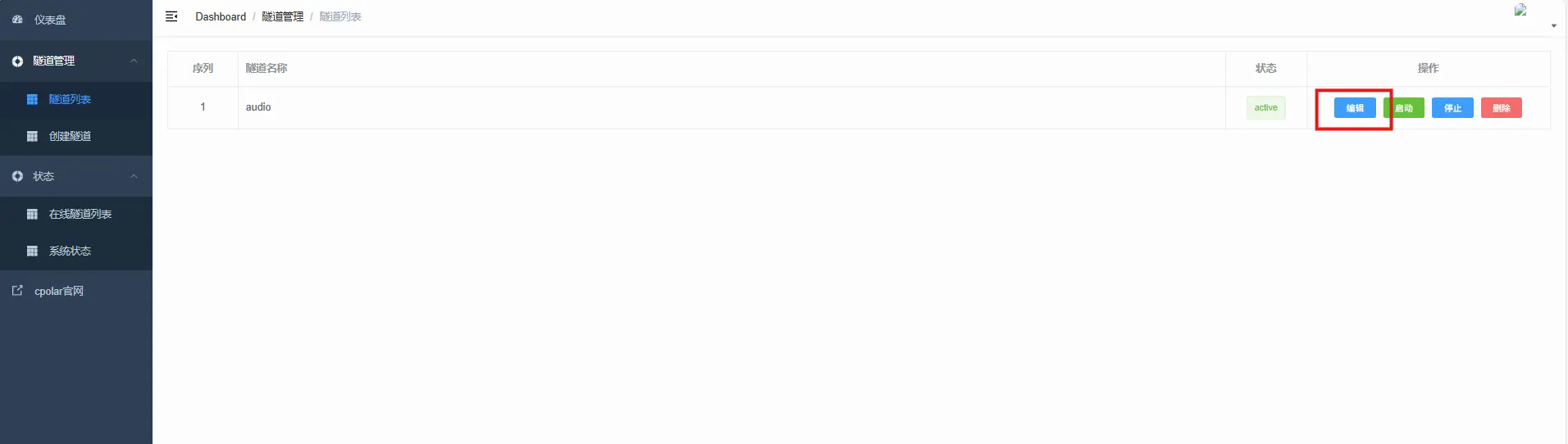
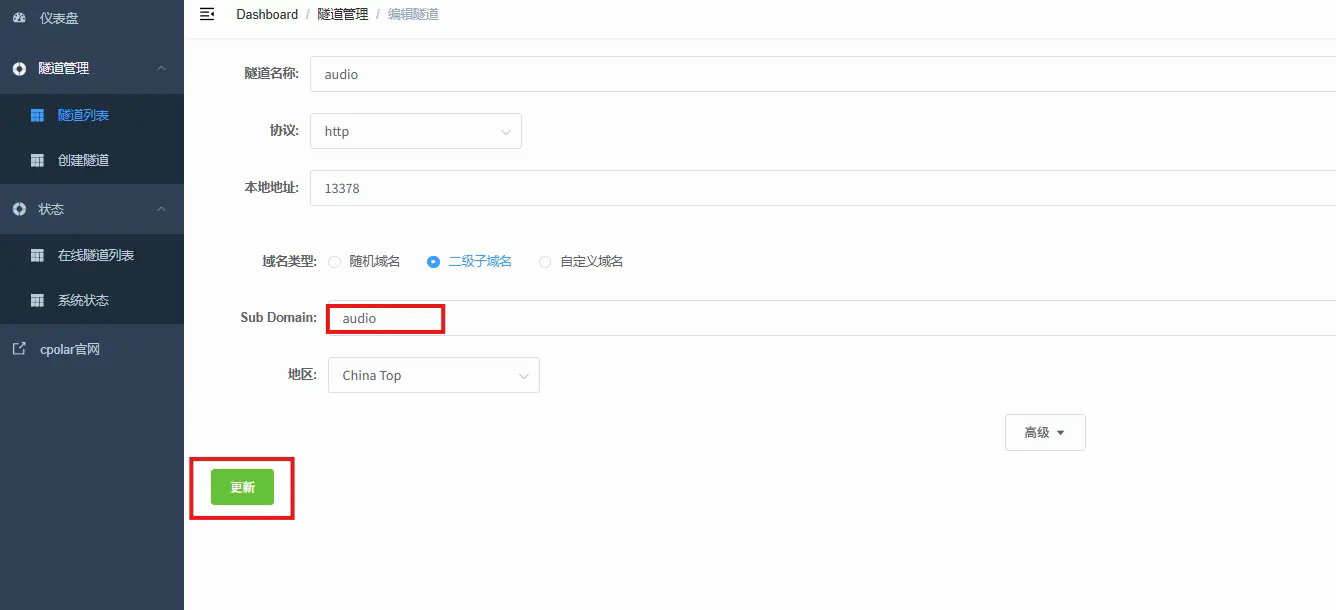
Modify the tunnel information and configure the successfully reserved second-level subdomain name into the tunnel.
- Domain name type: Select a second-level subdomain name
- Sub Domain: Fill in the successfully reserved second-level subdomain name
- Region: China Top
Clickrenew
After the update is completed, open the online tunnel list. At this time, you can see that the random public network address has changed, and the address name has also become a reserved and fixed second-level subdomain name.

Finally, we use the fixed public network address to access it in the browser of any device, and we can see that the page of Jispace has been successfully accessed. In this way, a secondary subdomain public network address that will never change is set.
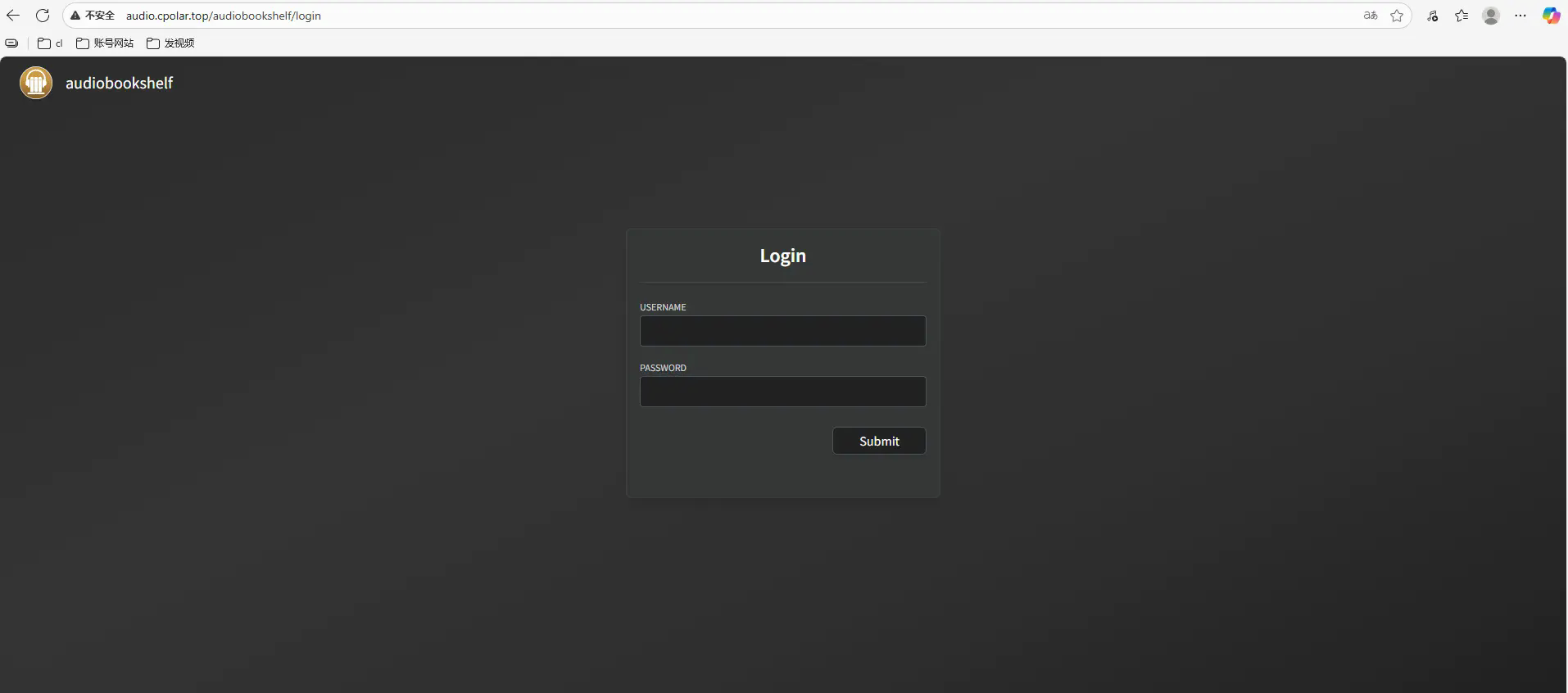
In this way, we can listen to novels anytime and anywhere!
Summarize
Once deployed, Extreme Space can host its own audiobook and podcast platform. Audio files are stored in the NAS, and Audiobookshelf is responsible for organizing, displaying and playing them. It is no longer just a matter of searching through ordinary folders one by one.
The value of this solution is not just to store audio in another place, but to make the listening experience closer to a real media library. After the capabilities of cover, classification, playback progress, and continued listening on multiple devices are completed, the local collection of audiobooks and podcasts will truly become easier to manage, search, and continue listening to.
Configuration cpolar Finally, the locally running Audiobookshelf can be accessed from the external network. Random domain names are suitable for temporary testing, while fixed second-level subdomain names are more suitable for long-term use, so that you can continue to access your audio book library on your mobile phone, tablet or company computer.
It should be noted that Audiobookshelf is more suitable for managing audio content that you legally own or authorize to use. When accessing the public network, you must also set a good account and password. It is not recommended to make the private media library address public at will to prevent personal content and service entrances from being accessed by irrelevant personnel.
Audiobookshelf is responsible for organizing audiobooks and podcasts into a sustainable media library, Jispace is responsible for saving content and running it for a long time, and cpolar is responsible for filling in the remote access entrance. When these parts are combined, the NAS no longer just silently stores files, but can become a private audio library that can be listened to at any time, the progress can be continued, and the content is controlled by oneself.